AI Garden Design Software: Pro Landscaping Tools Compared
If you have ever stared at a blank backyard and wished you could just see the finished garden before lifting a shovel, that is exactly what modern AI garden design software does. According to the Wikipedia entry on landscape design, the discipline blends horticulture, art and engineering — and AI tools now automate much of that first creative pass by turning a photo or a plan into a realistic landscape design in minutes.
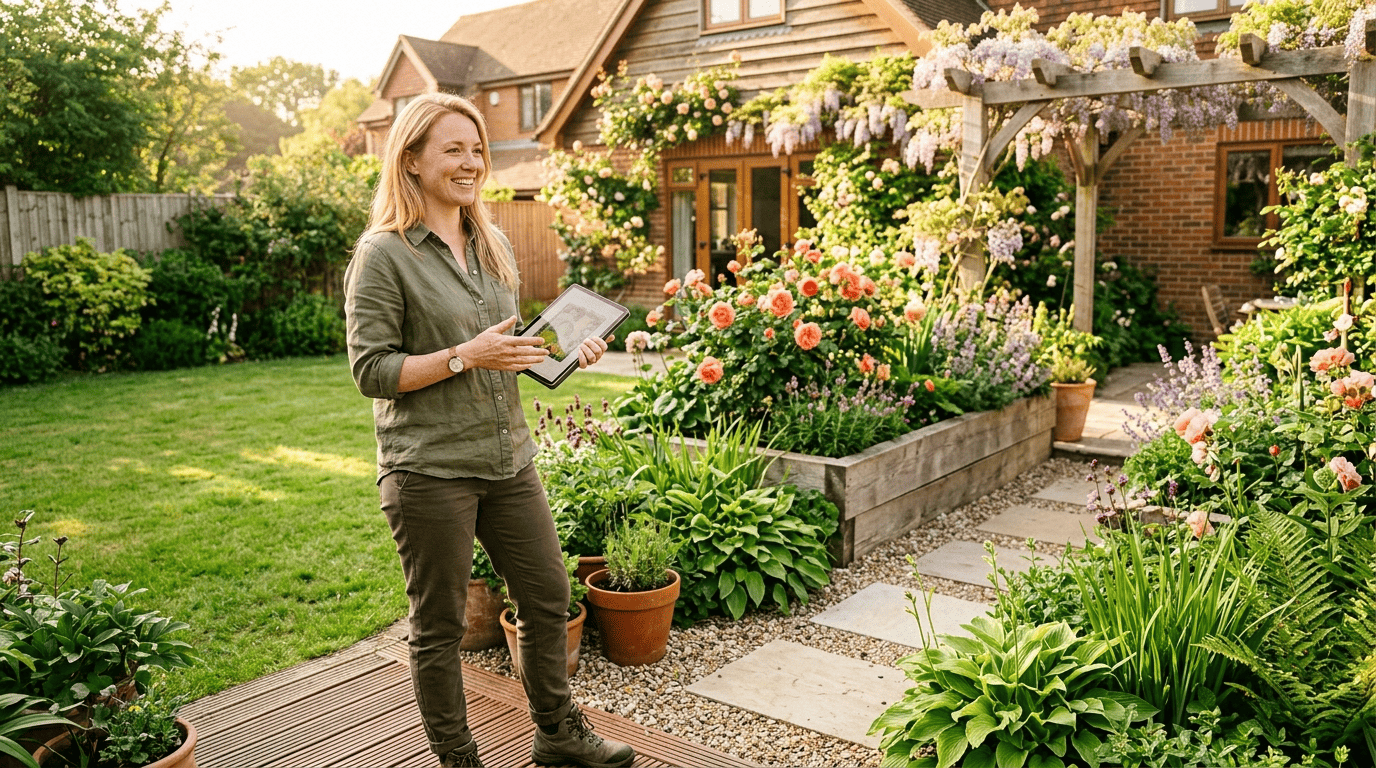
This guide compares professional, desktop-grade tools — the ones landscape pros actually run — against faster cloud AI renderers, so you can pick the right fit. Note this is the pro/software angle, distinct from a quick phone app.
What Is AI Garden Design Software?
AI garden design software is a type of landscape design software that uses AI rendering, or photo imaging, to turn ordinary snapshots into finished-looking gardens. Instead of building a design from scratch in a CAD program, you feed the software a photo of your yard, and it generates a redesign around what is already there — the fence line, the patio, the mature tree in the corner.
From blank yard to finished render
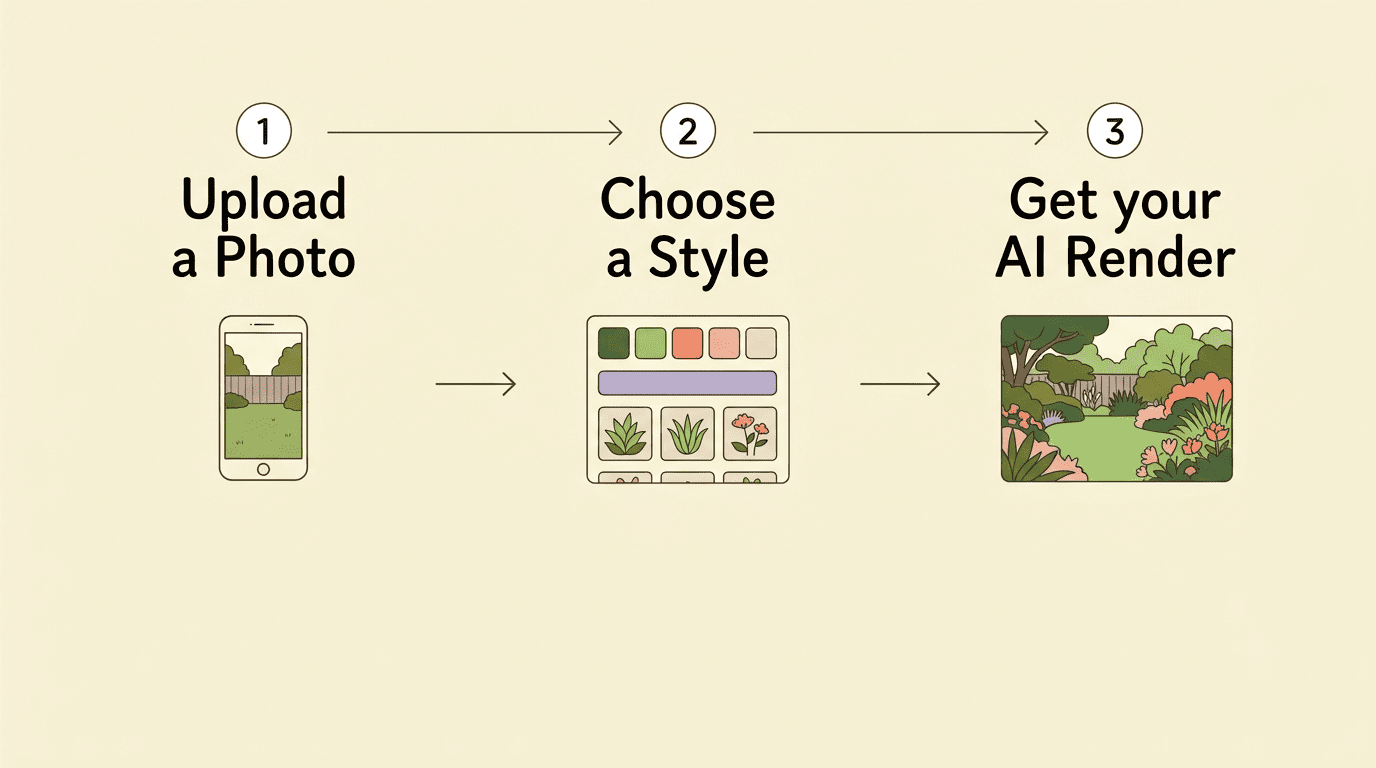
The core promise is simple: upload a photo, and AI generates a realistic redesign around your existing layout. DreamYard produces up to three design variations in under 30 seconds from a single photo. Neighborbrite reports more than 20 million designs generated for over 800,000 users across 170-plus countries, which gives a sense of how mainstream photo-first design has become. Compare that speed and cost to the traditional route: a landscape architect’s initial concept sketch typically runs $2,000 to $5,000 before a single plant goes in the ground.
Software vs. app — where «pro» tools sit
Think of the category as a spectrum:
- Phone and web apps — built for quick inspiration; snap a photo, get a mood board in seconds.
- Cloud AI renderers — turn a photo into a polished, near-final image in under a minute, no CAD skills needed.
- Desktop CAD and BIM suites — built for precise, buildable, professional documentation that survives a permit review.
This article focuses on that software and pro end of the spectrum — the tools a contractor or landscape architect actually bills hours in, not the quick-look app on someone’s phone.
Professional & Desktop AI Garden Design Software Compared
Choosing between an AI landscape design tool and a traditional CAD suite usually comes down to how precise the final output needs to be, and who is paying for the license.
The lineup at a glance
Here is how the major professional and desktop options stack up on platform, capability and price.
| Software | Platform | AI / 3D | Pricing | Best for |
|---|---|---|---|---|
| PRO Landscape+ | Windows, iPad, Android | Photo imaging + CAD + 3D + AI | ~$75/mo (~$900/yr) | Contractors presenting on-site |
| Realtime Landscaping Pro | Windows only | Photorealistic 3D | $279 one-time | 3D walkthroughs on a budget |
| SketchUp Pro | Windows, Mac | 3D modeling + plugins | $399/yr | Flexible 3D modeling |
| Vectorworks Landmark | Windows, Mac | Full BIM workflow | Custom quote | Firms needing documentation |
| DynaSCAPE Design | Windows | Pro-grade CAD | From $10,000/yr | Established design-build firms |
| VizTerra | Windows | 3D design-build | From $6,000/yr | High-end design-build studios |
| Cedreo | Web | 3D + AI rendering | ~$50/mo | Fast client-facing 3D visuals |
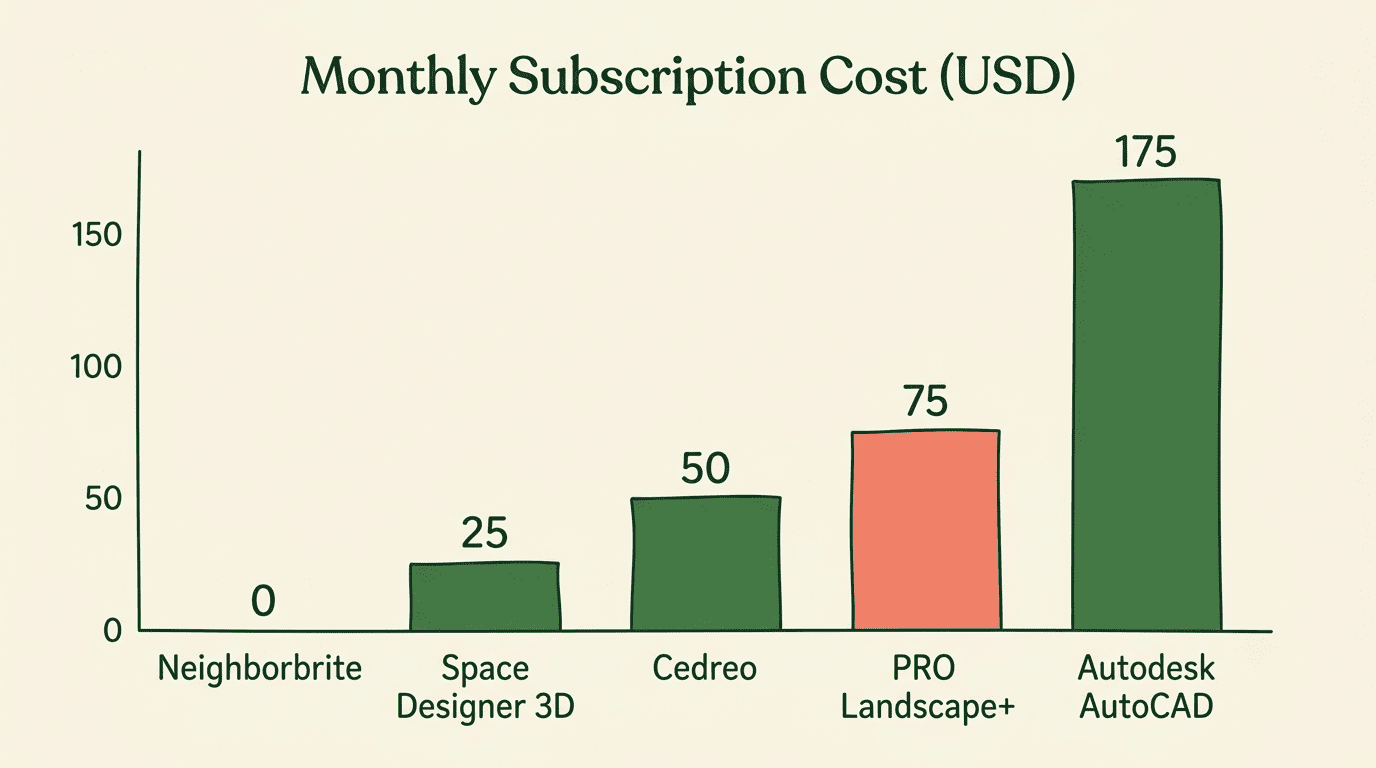
PRO Landscape+, made by Drafix Software, pairs photo imaging with CAD and 3D tools, and one license covers a single user, one PC and one tablet — plus iPad-based augmented reality previews and client-ready proposals. Realtime Landscaping Pro is a one-time $279 purchase with photorealistic 3D rendering, though a first render can take 15 to 30 minutes to process. SketchUp Pro runs $399 a year and leans on a large plugin ecosystem for flexible 3D modeling, while Vectorworks Landmark is built specifically for landscape architects who need a full site-analysis-to-construction-documents workflow. At the enterprise end, DynaSCAPE Design starts around $10,000 a year and VizTerra around $6,000 a year, both aimed at established design-build firms; Autodesk AutoCAD sits in between at roughly $175 a month. If you want a faster, photo-first alternative to any of these, the AI garden design generator approach is worth a look before committing to a full CAD license.
Verdio’s own garden design AI tool sits at the fast, photo-first end of this spectrum — useful for homeowners and pros who want a client-ready concept without opening a CAD file.
Cloud AI Renderers vs. Traditional CAD Suites
Speed vs. precision is the real trade-off. Cloud AI tools trade some accuracy for turnaround time. Hadaa charges $12 per render, or $9 each when you buy three or more, delivers a 4K image in under 60 seconds, and its team estimates the workflow saves 30-plus hours a month compared with manual rendering. Rendair offers 4K upscaling plus 20 free credits to start, no subscription required. Desktop CAD and BIM suites, by contrast, win on measured accuracy, construction documentation and the kind of control needed to pull permits. As Wikipedia’s overview of computer-aided design notes, CAD software is built to produce precise, dimensioned drawings — not just attractive images — which is exactly what separates it from a photo-to-render AI tool.
Cloud AI tools suit fast concepts. A homeowner deciding between two patio layouts, or a salesperson closing a deal on-site, benefits far more from a 60-second render than from a measured CAD drawing.
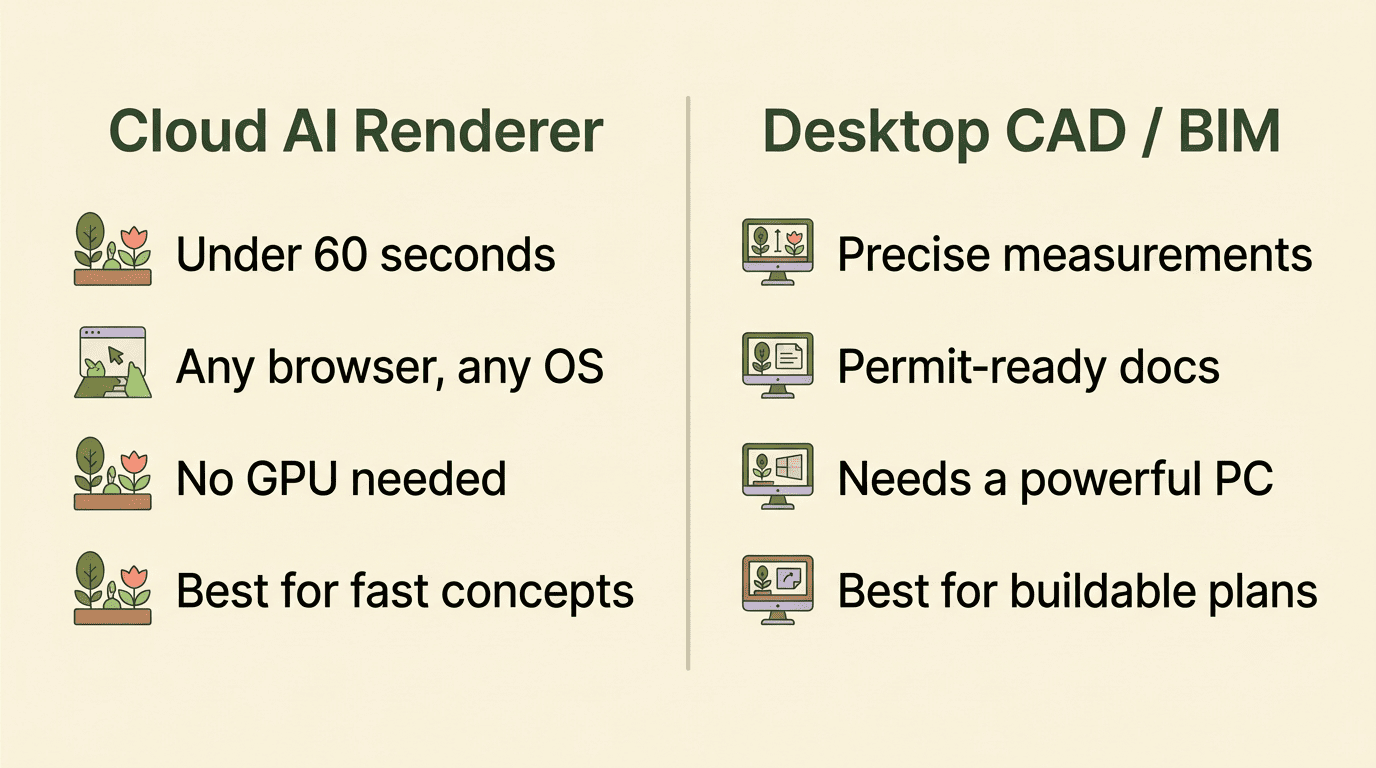
CAD/BIM suites suit buildable work. Anyone producing grading plans, irrigation layouts or permit-ready documents needs the precision only a CAD or BIM package delivers.
When you actually need CAD
Frame the decision honestly: if you are a DIY homeowner or you need a fast concept to show a client, cloud AI rendering is the better tool for the job. If your project involves any of the following, you need CAD or BIM software such as Vectorworks or AutoCAD Civil 3D instead:
- Grading and drainage plans
- Irrigation system layouts
- Permit or construction documentation
- Site surveys requiring measured accuracy
Reaching for an AI photo tool to draft a permit set is a mismatch that costs more time than it saves.
Hardware & System Requirements for Pro Software
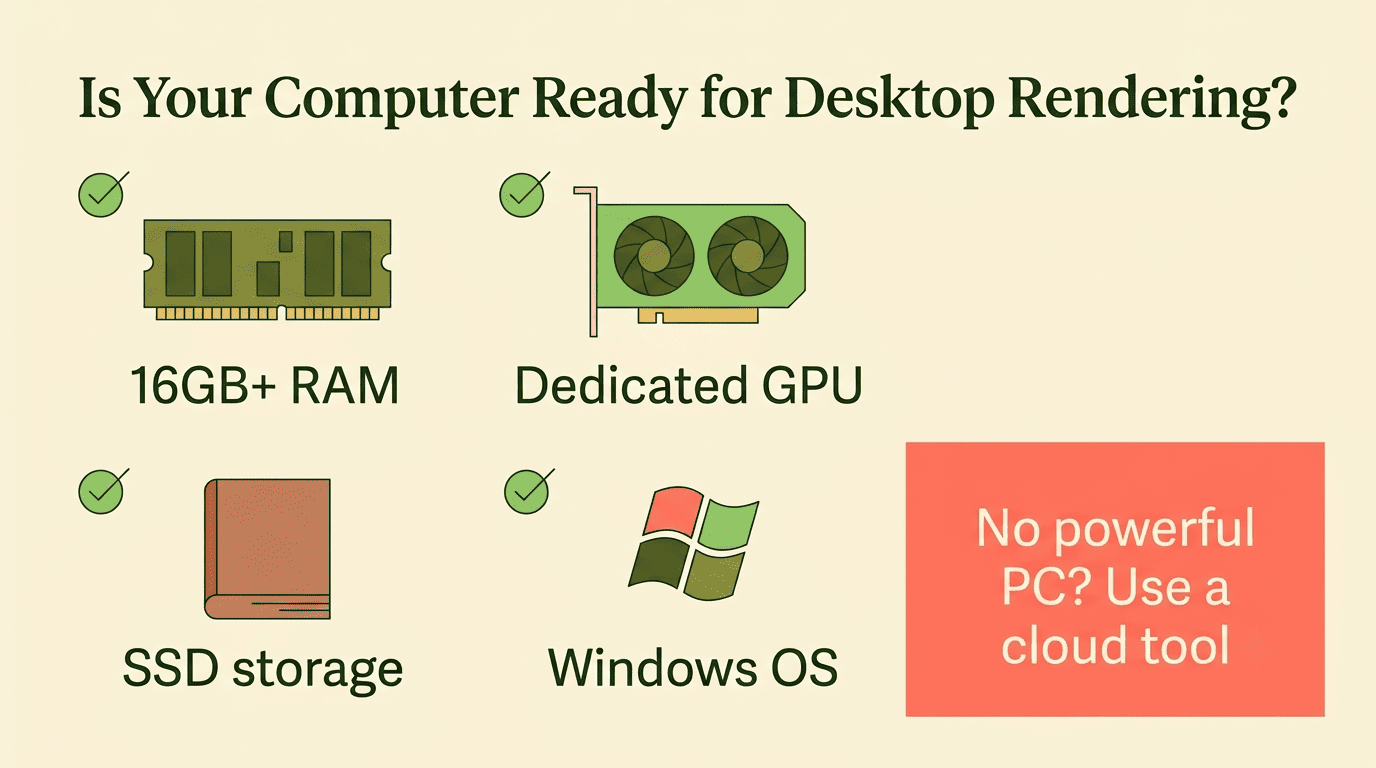
Desktop rendering software is genuinely demanding on hardware. Programs like Lumion, V-Ray and Twinmotion recommend 16GB or more of RAM, a strong dedicated GPU and an SSD to keep render times reasonable — skimp on any of the three and a scene that should take seconds can stretch into minutes. Realtime Landscaping Pro is Windows-only, so Mac users are ruled out before hardware even enters the conversation.
| Requirement | Desktop CAD / render engines | Cloud AI renderers |
|---|---|---|
| RAM | 16GB or more | Any (runs server-side) |
| GPU | Strong dedicated GPU | None needed |
| Storage | SSD recommended | None (browser-based) |
| OS | Often Windows-only | Any — Mac, Windows, Chromebook |
| Install | Full software install | None — runs in browser |
Here is the quick way to check whether your setup is ready for desktop rendering:
- Confirm your operating system matches the software’s requirements (several tools, including Realtime Landscaping Pro, are Windows-only).
- Check your RAM — aim for 16GB minimum for Lumion, V-Ray or Twinmotion.
- Verify you have a dedicated GPU, not just integrated graphics.
- Make sure your project files and software install sit on an SSD, not a spinning hard drive.
- If any box goes unchecked, look at a cloud AI renderer instead — it runs in a browser on any OS, including a Chromebook, with no install and no GPU required.
That last point is worth underlining: cloud AI tools do not care what machine you own. They run in a browser on Mac, Windows or Chromebook alike, with the rendering handled on someone else’s servers.
Plant Selection: Getting Your USDA Zone Right
Why zone-aware software matters
A gorgeous render means nothing if the plants in it cannot survive your winters. Good software accounts for this in a few different ways:
- Hadaa verifies its plant lists against USDA hardiness zones.
- Neighborbrite generates location-based plant lists automatically.
- DreamzAR uses a ZIP-code-based cost calculator to ground its suggestions in local reality.
A pretty render with the wrong plants is a dead garden by August.
A gentle reality check (soft disclaimer)
Here is the honest caveat, garden-to-garden: climate, soil and even microclimate can vary a surprising amount from one yard to the next, sometimes block to block. Before you buy a single plant, confirm your USDA Plant Hardiness Zone, and check specific cultivars and soil conditions with your local garden center or your county’s Cooperative Extension office. AI garden design software is a fast, genuinely useful starting point — but it is not a substitute for someone who knows your local dirt. No tool can guarantee that a specific cultivar will thrive in your exact spot, and that is fine; that is what the local check-in is for.
The Plant Hardiness Zone Map is the standard by which gardeners and growers can determine which plants are most likely to thrive at a location.
USDA Agricultural Research Service
That is exactly why the zone-lookup step above matters more than any single render — it is the difference between a garden that looks good in October and one that survives to see spring.
How to Choose the Right AI Garden Design Software
A short buyer’s checklist
Work through these questions before you commit to a license:
- Your role — are you a homeowner exploring options, or a professional billing client hours?
- Buildable docs — do you need permit-ready drawings, or just a compelling visual?
- Budget model — per-render (Hadaa), monthly subscription (Cedreo, PRO Landscape+), one-time purchase (Realtime Landscaping Pro), or enterprise licensing (DynaSCAPE, VizTerra)?
- OS and hardware — does your machine meet the requirements, or does a browser-based cloud tool make more sense?
- AR and on-site presenting — do you need to show a client an augmented-reality preview standing in their actual yard?
- Plant-accuracy needs — how much does USDA-zone-verified plant matching matter for your project?
Working professionals evaluating full CAD/BIM adoption can also lean on resources from the American Society of Landscape Architects, which publishes technology and practice guidance for the field. If you mostly work from a phone on-site, the AI garden design app sibling to this software roundup covers the mobile-first side of the category, while pros needing desktop-grade output should stick with AI garden design software tools compared above.